How to Zoom
There are lots of ways to make video calls, you could use Skype, Facebook Messenger, Google hangouts, Microsoft Teams or Zoom (and lots of others). We prefer Zoom, just because it is quite simple and can be used easily by clients. Once you are connected everything just works smoothly and there is little to adjust.
How to take a Zoom call
- The best start is to download the Zoom app. Even if you don't do this first you are usually prompted to do this before you connect anyway. Zoom is free, and you can download the app here https://zoom.us/download
- If you sign up for Zoom you can use a bit more of its functionality, but it is not necessary just to take the call
- For the call we will send you an email with a link, just click the link to get started and follow the prompts to open the Zoom app
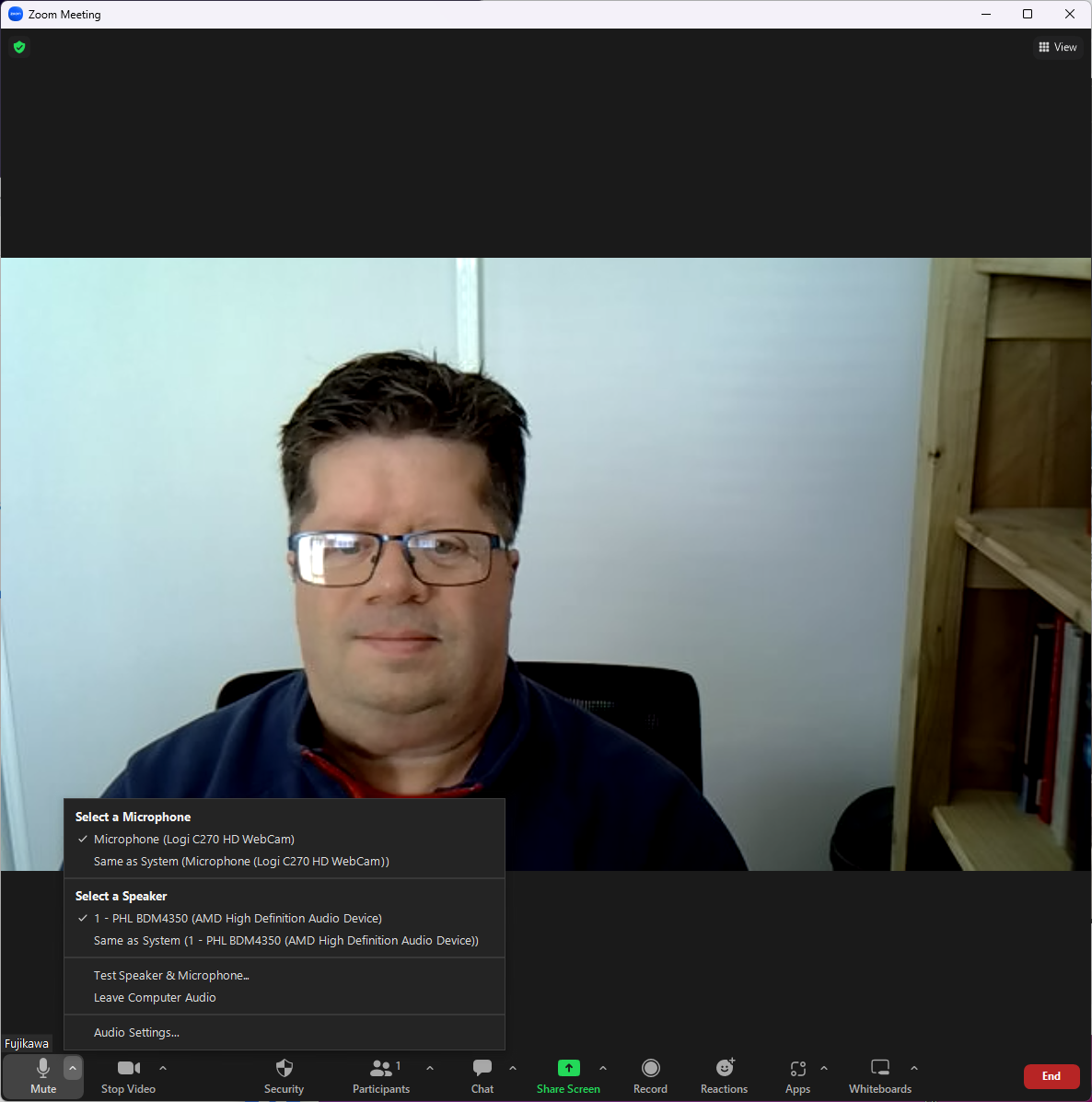
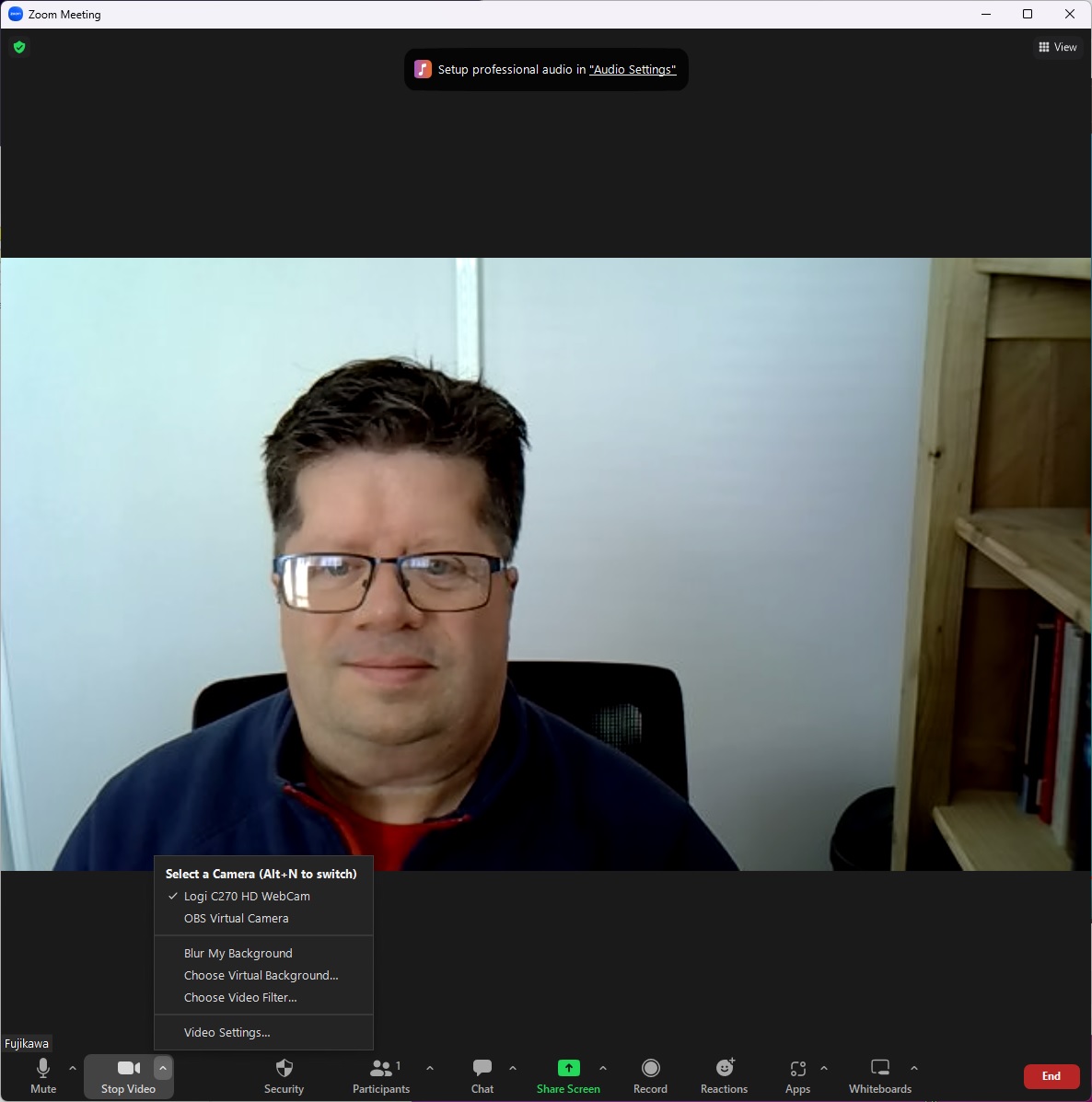
That is basically all you need, but it always pays just to check that your web camera, microphone and speakers are all working well. You can check these in the menus at the bottom of the screen once you have connected as well.
Audio and Video settings
Audio and video settings are accessed by clicking on the little arrows at the right of the microphone and camera icons at the bottom of the screen. Sometimes selecting the correct device is all you need, but you can also test them before getting started to make sure it is all working. If you are unsure it pays to join the meeting early and run through these tests just to make sure.